
At a high risk of losing their houses, foreclosure lists are and will continue to be one of the best sources of motivated sellers and high-income real estate opportunities. While there are multiple list providers like PropertyShark or even Propstream, there’s nothing like getting your data directly from the county.
It’s a quick and reliable source of information, but usually time-consuming and often only contains a portion of the information you need to get phone numbers. This is where Web Scraping comes in handy.
Web Scraping is a real game-changer, as it automates the entire process without the headaches of manual data entry, giving you a significant advantage in contacting motivated sellers before anyone else.
What is Web Scraping?
Pulling records from the county is a pretty tedious and repetitive task, it involves copying and pasting a lot of information thousands of times. When I refer to Web Scraping I essentially mean automating what a Virtual Assistant would do if you try to retrieve these records the old-fashioned way.
Turns out browser actions, like clicking a button or scrolling down a page can be automated. This allows us to create bots that can check records monthly, weekly, or even daily, in search of newly available sales.
Why should I want to do this?
In the past, when I first had the chance to lead a team of data entry Virtual Assistants, I noticed it was a pain in the ass.
I tried everything, clearer videos, a more well-defined process and setting up KPIs. However, our team of 3 didn’t seem to catch up with our needs, and we were spending plenty of money (approximately $1,800.00 per month).
That’s when I began researching automation tools to expedite the process and stumbled upon Web Scraping. It was a no-brainer for me, this was the right way of doings things in 2024.
Suddently, we were in front of a tool that would be WAY easier to manage, WAY less prone to errors and leads would be ready for skip-trace the same day they were updated by the county.
How to Scrape County Preforeclosures
Step 1: Preparation
Run this command in your project folder to install puppeteer, puppeteer-core and chromium.
npm install puppeteer puppeteer-core @sparticuz/chromium
Then, import these libraries in your “App.js” file.
const puppeteer = require('puppeteer');
const chromium = require('@sparticuz/chromium');
Next, you need to create an asynchronous function. This is where you will place all of your Puppeteer code.
const getRecords = async() => {
};
getRecords();
To finish preparing for the fun, open an instace of chrome inside your function.
const browser = await puppeteer.launch({
  args: [
    ...chromium.args,
    '--disable-features=site-per-process',
    '--disable-dev-shm-usage'],
  defaultViewport: chromium.defaultViewport,
  executablePath: await chromium.executablePath(),
  headless: chromium.headless,
  ignoreHTTPSErrors: true,
  timeout: 120000,
});
Step 2: Open the Auctions website
To handle errors and close the browser once you already scraped your data, you need to use a try-catch block after you set the browser up.
try {
  // This is where you will place the rest of
  // your code.
} catch (error) {
  // Logs an error if anything goes wrong.
  console.log(error);
} finally {
  // Closes the browser and exits the process
  // after code finishes running.
  browser.close();
  process.exit();
};
Now you have to open up a new page and navigate to the target URL.
// Open a new browser tab in Chromium.
const page = await browser.newPage();
// Go to Foreclosure's calendar and wait for
// content to load.
await page.goto('https://pinellas.realforeclose.com/index.cfm?zaction=USER&zmethod=CALENDAR', {
  waitUntil: 'domcontentloaded'
});
Step 3: Go to the next Auction day
A monthly calendar will you show. Elements are usually loaded before the actual text in this website, so instead of waiting for certain element to be available, you’ll have to wait for the text to show up.
await page.waitForFunction(
  // Wait until this function returns TRUE.
  selector => !!document.querySelector(selector).innerText,
  // Options and target selector.
  {}, 'span.CALMSG > span.CALACT'
);
// Get all the boxes inside of the calendar
// that represent sale days.
const saleDayHandles = await page.$$('div.CALSELF, div.CALSELT');
Days that pass by have 0 Auctions available, so you’ve got to get the Auction Days that contain actual Auctions available and click on the first Auction Day.
// Create an empty Array we can push Auction
// Days to.
let nextAuctionDays = [];
// Loop through Auction Days and get days
// when there are Auctions available.
for (const auctionDay of auctionDays) {
  // Find the number of Auctions available.
  const availableAuctions = await page.evaluate(el => {
    // Check if the number is greater than 0 and
    // return it if it is.
    if (el.querySelector('span.CALACT').innerText > 0) {
      return el.querySelector('span.CALACT').innerText;
    };
    // Return null if number is lower or equal to 0
    return null;
  }, auctionDay);
  // If availableAuctions is not null, push the
  // Auction Day to nextAuctionDays.
  if (availableAuctions) {
    nextAuctionDays.push(auctionDay);
  };
};
// Click the first Auction Day that has
// Auctions available.
await nextAuctionDays[0].click();
Step 4: go through each Auction Day
From now on, there will be a button you can click to get to the next Auction Day. When you hit the end of the Auctions Days available, the button will be greyed and you can no loger click on it. You can use this to your advantage by looping through the Auction Day Pages and break the loop when that button is not clickable anymore.
// Create a variable containing TRUE
let condition = true;

// Make an object you can use to store
// the Auctions you find in each page.
const object = [];
// Create a do... while loop that runs
// while condition is still true.
do {
  // This is where will you place the rest
  // of your code.
} while (condition)
There is a Header in this page that has the Auction Date, e.g., June 15th, 2024. You need to get that text, I’ll explain why later.
// Wait until the header containing the
// Auction Date contains text.
await page.waitForFunction(
  selector => !!document.querySelector(selector).innerText,
  {}, 'div.BLHeaderDateDisplay'
);
// Create a variable containing the
// current Auction Date.
const currentAuction = await page.evaluate(selector => {
  return document.querySelector(selector).innerText;
}, 'div.BLHeaderDateDisplay');
Step 5: loop through Auction pagination
The Auctions are organized into pages, with 10 Auctions per page. You have to loop through the pages to get all the Auctions of certain Auction Days. What you will do is waiting for the amount of pages to show up. Then, collect the Auctions from each page.
// Hold off until the amount of pages
// is available.
await page.waitForFunction(
  selector => !!document.querySelector(selector).innerText,
  {}, 'span#maxWA'
);
// Collect the amount of pages.
const pages = await page.evaluate(selector => {
  return document.querySelector(selector).innerHTML;
}, 'span#maxWA');
// Repeat code until all pages have
// been visited.
for (let i = 1; i <= pages; i++) {
  // This is where you will continue to
  // write code. I'll let you know when
  // to stop adding code to this loop.
};
Step 6: extract and repeat.
There are up to 10 boxes containing Auction information, you have to get them and retrieve the information inside each box.
// Find all the boxes containing Auction
// information inside.
const saleContainers = await page.$$('div.Head_W > div#Area_W > div.AUCTION_ITEM');
// Go through each box and call your
// extractDetails() function. Read
// below for more details.
for (const saleContainer of sale Containers) {
  object.push(
    await extractDetails(page, saleContainer);
  };
};
You have to create another function outside your main getRecords(). This function will receive a Puppeteer Page and a sale container to extract the details.
// Create an asynchronous function that
// receives a Puppeteer Page and a sale
// container.
const extractDetails = async (page, saleContainer) => {
  // Utilize Page.evaluate() to execute functions
  // within the browser context.
  const details = await page.evaluate(el => {
    // The content is inside of a Table,
    // extract the cells inside that Table.
    const details = el.querySelectorAll('div.AUCTION_DETAILS td');
    // Extract the relevant data from the
    // container.
    return {
      sale_date: el.querySelector('div.AUCTION_STATS > div.ASTAT_MSGB').innerText,
      sale_case: details[1]?.innerText || '',
      judgement_amount: details[2]?.innerText || '',
      parcel_id: details[3]?.innerText || '',
      property_address: details[5] ? [ details[4].innerText, details[5].innerText.replace('-', '') ].join(', ') : '',
      assessed_value: details[6]?.innerText || '',
      plaintiff_max_bid: details[7]?.innerText || ''
    };
  }, saleContainer);
};
Step 7: finalize the script.
Then you need to make sure you haven’t reached the last page of the loop to click the Next button and wait for the content to load. You’ve reached the end of the pages loop so you’ll continue outside of it after this.
// Check if the loop hasn't reached
// the last page.
if (i < pages) {
  // Wait until the Next button is
  // available to click.
  await page.waitForSelector('div.Head_W > div.PageFrame > span.PageRight');

  // Click the Next button to go to the
  // following page.
  await page.click('div.Head_W > div.PageFrame > span.PageRight');

  // Hold on until the element that
  // contains the current page number
  // is not the same as the current iteration.
  await page.waitForFunction('document.getElementById("curPWA").value != '+'"i"');
};
Last but not least, you have to see if there is an existing Next Auction button you can click or set the initial condition to false
The cherry on top will be loggin your code’s progress in the console as it scrapes Auctions.
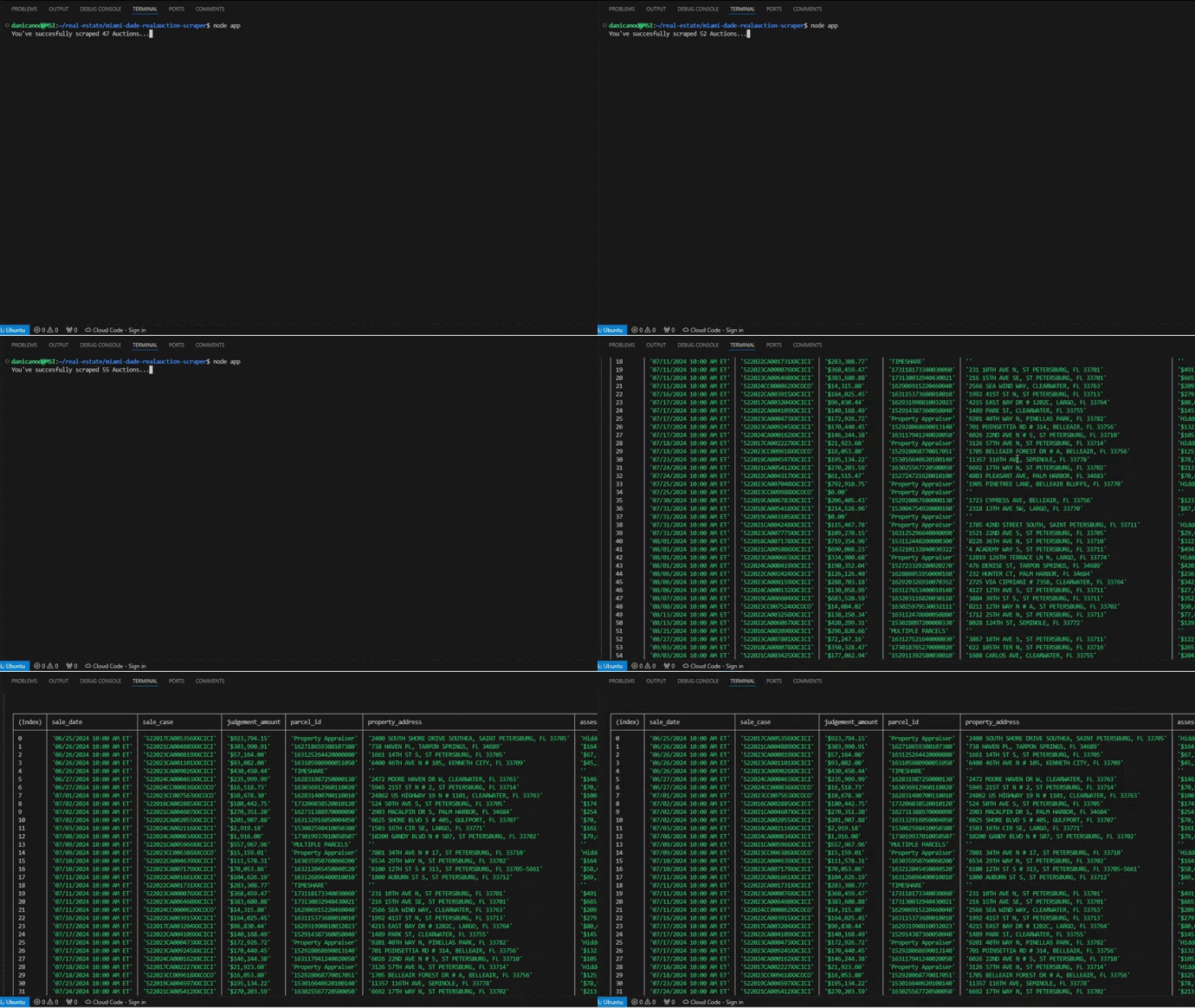
process.stdout.write(`\rYou've succesfully scraped ${object.length} Auctions.\n`);
And there you go, Auctions scraped at the tip of your hands in just a few seconds. I’ll update this article soon to show you how you can export it into a JSON file that you can easily read later with Excel.
Next steps
What you want to do next is scrape the rest of the data using the Property Appraiser’s website, I will show you how this is done in my next tutorial as well as how to easily read this in an Excel file.
Let me know what your thoughts are and what you’d like to see next. Cheers, Daniel.
 Daniel Sánchez